
OBS Studio Setup for Streaming: Complete Beginner Guide
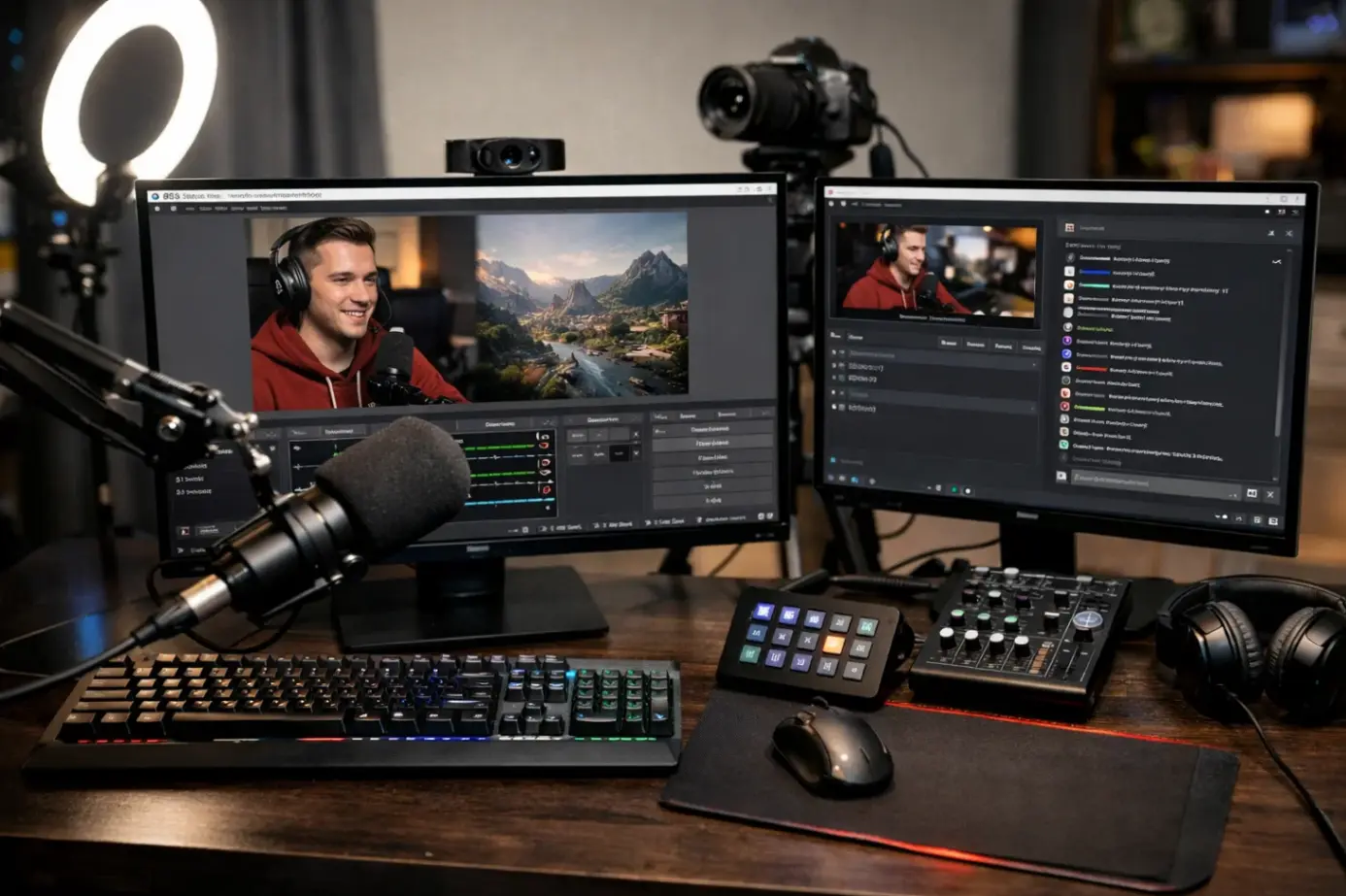
Streaming has become one of the most popular ways to share gameplay, tutorials, podcasts, and live events online. Platforms like Twitch, YouTube Live, and Kick allow creators to build audiences and communities through live broadcasts. One of the most widely used tools for streaming is OBS Studio, a free and open-source program that offers powerful features for recording and live streaming.
For beginners, however, OBS Studio may look complicated at first. The interface contains multiple panels, settings, scenes, and audio controls that can be confusing without guidance. The good news is that once the basics are understood, setting up OBS becomes straightforward and flexible.
This guide explains how to configure OBS Studio for streaming from scratch. You will learn how to install the software, configure streaming settings, manage scenes and sources, optimize audio and video, and prepare your setup for professional-looking streams.
Installing OBS Studio and Preparing Your Streaming Setup
Before configuring any streaming settings, the first step is installing OBS Studio and preparing your computer environment. OBS is available for Windows, macOS, and Linux, and it can be downloaded directly from the official OBS Studio website.
After downloading the installer, run it and follow the setup instructions. The installation process takes only a few minutes and does not require advanced configuration. Once installed, launch OBS Studio and you will see the main interface with several panels including Scenes, Sources, Audio Mixer, Scene Transitions, and Controls.
The first time OBS starts, it may offer an Auto-Configuration Wizard. This tool analyzes your system and suggests optimal settings for streaming or recording. While beginners can use this wizard, manual configuration usually gives better control over quality and performance.
Before starting your first stream, make sure your hardware is ready. A stable streaming setup typically includes a good processor, enough RAM, and a reliable internet connection. Most modern computers can handle streaming at 720p or 1080p, but performance depends on the game or application you plan to broadcast.
It is also important to prepare your microphone and webcam. OBS automatically detects many audio devices, but you may need to select the correct microphone in the audio settings. A clear microphone setup significantly improves stream quality and viewer engagement.
Finally, create a basic streaming environment. Close unnecessary programs, update graphics drivers, and ensure your internet upload speed is sufficient for streaming. These small preparations can prevent performance issues during live broadcasts.
OBS Studio Interface Overview and Key Settings
Understanding the OBS Studio interface is essential before adjusting advanced settings. The program uses a scene-based workflow, meaning each stream layout is created using scenes and sources. Scenes act like layouts, while sources represent elements such as webcams, games, or images.
The table below summarizes the main OBS Studio interface components and their functions.
| OBS Interface Element | Function |
|---|---|
| Scenes | Collections of visual elements used to create stream layouts. |
| Sources | Individual media elements such as game capture, webcam, images, or browser overlays. |
| Audio Mixer | Controls volume levels for microphones, desktop audio, and other sound sources. |
| Scene Transitions | Effects used when switching between scenes during a stream. |
| Controls Panel | Buttons for starting streaming, recording, and accessing settings. |
| Studio Mode | Allows previewing scenes before showing them live. |
Scenes are the foundation of any OBS setup. A typical streamer uses multiple scenes, such as a gameplay scene, a starting soon screen, and a webcam chat scene. Each scene contains different sources arranged visually.
Sources can include game capture, display capture, webcams, browser alerts, images, and text overlays. By combining these sources, streamers create professional layouts that enhance the viewing experience.
The Audio Mixer panel manages all audio inputs. Here you can adjust microphone levels, mute devices, or apply filters such as noise suppression. Balanced audio levels are critical because viewers will quickly leave streams with poor sound quality.
The Controls panel provides access to streaming actions and the settings menu. Most configuration steps occur inside the Settings window, where you can adjust video resolution, bitrate, streaming platforms, and encoder settings.
Understanding these interface components makes the rest of the OBS configuration process much easier.
Creating Scenes and Sources for Your Stream
Once you understand the OBS interface, the next step is building your stream layout using scenes and sources. This stage defines what viewers will actually see during the broadcast.
To create a new scene, click the plus icon in the Scenes panel and give the scene a descriptive name such as “Gameplay” or “Starting Soon.” After creating the scene, you can begin adding sources.
Sources represent every visual element inside the stream. The most common source for streamers is Game Capture, which allows OBS to capture gameplay directly from a specific game window. If the game capture method does not work for certain titles, Display Capture or Window Capture can be used instead.
A typical beginner streaming scene usually includes several key elements. These elements help create a structured and engaging broadcast layout:
- Game capture showing the gameplay window.
- Webcam capture displaying the streamer.
- Microphone input for commentary.
- Stream overlay graphics.
- Alerts or browser sources for follower notifications.
Game capture should be positioned as the main element of the scene, filling most of the screen. The webcam source is usually placed in one of the corners to avoid blocking gameplay content.
Many streamers also add overlays and alert systems through browser sources. These elements display animations when someone follows, subscribes, or donates. They help make streams interactive and engaging.
After adding sources, you can resize and reposition them directly in the preview window. OBS allows full control over layering, meaning you can stack elements on top of each other to create custom layouts.
Once the scene looks correct, test it by recording a short clip. Watching a quick test recording helps identify layout issues before going live.
Configuring Video and Audio Settings in OBS Studio
Proper video and audio settings are essential for producing a smooth and professional stream. OBS Studio provides many configuration options, but beginners should focus on several key settings that affect stream quality.
Open the Settings menu and navigate to the Video section. Here you will configure the base canvas resolution and the output resolution. The base canvas should match your monitor resolution, while the output resolution determines the quality viewers see.
For most beginner setups, 1920×1080 for the base canvas and 1280×720 for the output resolution works well. This combination reduces system load while maintaining clear video quality.
Next, set the frame rate. Most streams use either 30 FPS or 60 FPS. Streaming at 60 FPS provides smoother motion, especially for fast-paced games, but it requires more processing power and bandwidth.
Audio configuration is just as important as video quality. Inside the Audio settings menu, select the correct microphone and desktop audio devices. OBS allows multiple audio channels, but beginners usually only need a primary microphone and system audio.
Once devices are selected, the Audio Mixer panel becomes active. Here you can adjust volume levels and monitor audio sources. Ideally, microphone levels should peak around the yellow range without entering the red area.
OBS also supports audio filters that improve microphone clarity. Noise suppression removes background sounds, while a compressor helps maintain consistent volume levels during speech.
Testing audio before every stream is recommended. Even small issues such as muted microphones or incorrect device selections can ruin an otherwise well-prepared broadcast.
Stream Settings, Bitrate, and Platform Integration
Connecting OBS Studio to a streaming platform is the final step before going live. OBS supports many services including Twitch, YouTube Live, Facebook Live, and Kick.
To configure this, open Settings and navigate to the Stream tab. Select your platform from the service list and enter the stream key provided by your streaming platform dashboard. The stream key acts like a password that connects OBS to your channel.
After linking the platform, configure bitrate settings in the Output tab. Bitrate determines how much data is sent to the streaming platform and directly affects video quality.
For beginners, recommended bitrate ranges usually depend on resolution and frame rate. Higher bitrates produce better quality but require stronger internet upload speeds.
Typical streaming bitrate recommendations include:
- 2500–4000 kbps for 720p streaming.
- 4500–6000 kbps for 1080p at 30 FPS.
- 6000 kbps or higher for 1080p at 60 FPS.
These values should always match your internet capabilities. A stable upload speed is more important than pushing maximum quality settings.
Encoder settings also influence performance. OBS supports both software encoding (x264) and hardware encoding such as NVENC or AMD VCE. Hardware encoders reduce CPU load and are generally recommended for gaming streams.
Once bitrate and encoder settings are configured, perform a test stream using private or unlisted stream settings. This helps ensure everything works correctly before broadcasting to viewers.
Final Stream Testing and Optimization Tips
Before launching a public broadcast, it is important to test the entire OBS setup. Even experienced streamers regularly perform test recordings or private streams to verify that video, audio, and overlays are working correctly.
Start by recording a short local video. Watch the recording carefully and check for dropped frames, audio desynchronization, or layout issues. If performance problems appear, lowering resolution or bitrate can improve stability.
Monitoring CPU and GPU usage during the test stream also helps identify performance limits. OBS includes a statistics panel that shows frame drops, encoding load, and network stability.
Lighting and webcam quality should also be reviewed before streaming. Proper lighting significantly improves webcam clarity even with basic cameras. A simple desk lamp placed in front of the streamer can dramatically improve visual quality.
Another important step is organizing scenes for different situations. Many streamers create scenes such as Starting Soon, Live Gameplay, Intermission, and Stream Ending. Switching between scenes keeps the broadcast structured and professional.
Finally, always monitor chat and alerts during live broadcasts. OBS integrates with various tools that allow streamers to manage alerts and viewer interactions directly within their setup.
By testing and refining these elements, beginners can quickly transform their basic OBS configuration into a reliable streaming workflow.
Conclusion
OBS Studio remains one of the most powerful and flexible streaming tools available today. Despite its professional capabilities, beginners can learn to use it effectively with the right setup process.
The key steps involve installing OBS, understanding the interface, building scenes and sources, configuring video and audio settings, connecting to streaming platforms, and performing thorough test streams. Each of these steps contributes to creating a stable and professional broadcast environment.
With practice and gradual improvements, OBS Studio allows streamers to produce high-quality content that rivals professional broadcasting setups. Once the basic configuration is complete, creators can explore advanced features such as stream overlays, plugins, and automated scene switching to further enhance their streams.